
HappyMod for PC doesn’t exist as a Windows or Mac program. HappyMod is an Android app, so the only real way to use it on a computer is through an Android emulator such as BlueStacks or LDPlayer. The good news: setup takes about 15 minutes, and once it’s done HappyMod works on your PC just like it does on a phone.
This guide covers everything step by step: checking your PC, enabling virtualization, choosing the right emulator, installing the APK and fixing the errors people usually run into. If you only need the app on your phone, get the latest HappyMod APK from our homepage instead.
- HappyMod has no official Windows or Mac version. You run the Android app inside an emulator.
- Best picks: BlueStacks (easiest setup) or LDPlayer (lighter, good for gaming).
- You need at least 4 GB RAM (8 GB recommended) and virtualization turned on.
- Never download a HappyMod .exe or .dmg file. Those are fake.
HappyMod on PC: Why There Is No Official Windows or macOS Version
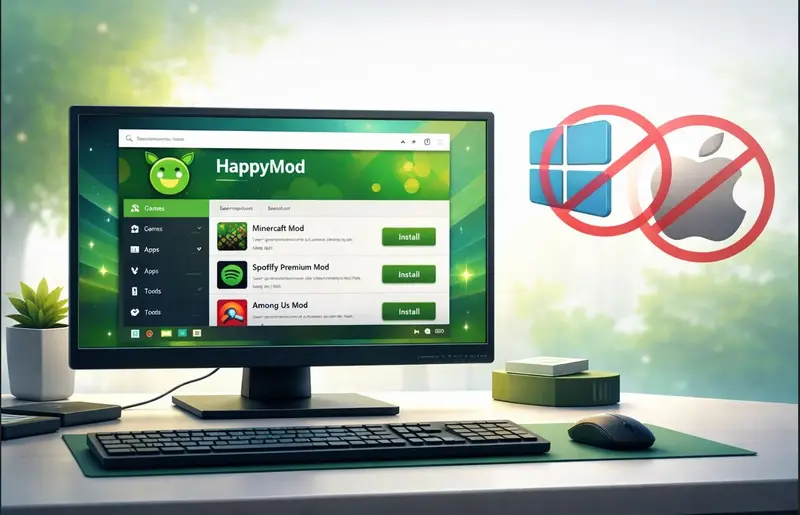
Happy mod is basically an Android APK file. APK packages are built for Android mobiles using the ARM architecture. Windows uses x86 or x64 processors from Intel or AMD. That means this app file is not made for Pc but we will use it on pc using any emulator.
Check file names before installations, and if you see files:
- HappyMod_Setup.exe
- happymod_pc.exe
- HappyMod.dmg
They are not official releases.
How to Identify Fake .exe or .dmg Files
Suspicious installers often:
- Redirect through download hubs
- Bundle extra software
- Request administrator access instantly
- Trigger Windows Defender alerts
Use only the official HappyMod APK file and install it inside an emulator like BlueStacks or LDPlayer.
Why Emulators Are the Only Legitimate Method
An emulator runs a virtual Android operating system inside Windows. It behaves like a tablet in a window. The APK installs into that isolated environment, not directly into your system files. This separation adds a layer of protection and keeps your main OS untouched.
Can HappyMod run on a PC? (Understanding APK and Emulator Requirements)
HappyMod on pc is built for Android devices and cannot run directly on Windows or macOS. To use it on a PC, you need an Android emulator like BlueStacks or LDPlayer that creates a virtual Android environment inside your computer.
Why Android Apps Cannot Run Directly on Windows (ARM vs x86 Basics)
Android apps are compiled for ARM processors. Your desktop processor uses a different instruction set. When Windows attempts to execute an APK file, it cannot interpret the code.
That’s why double-clicking the file does nothing.
What an Android Emulator Actually Does
BlueStacks, LDPlayer, and GameLoop simulate Android hardware. They load a virtual Android version, such as Android 9 or Android 11, inside a controlled environment. You can then:
- Install APK files
- Access Google Play services
- Use a mouse and keyboard
- Run multi-instance sessions
From your perspective, it feels like using a tablet on your monitor.
Why Virtualization Is Required
Virtualization technology (Intel VT-x or AMD-V) allows your CPU to manage virtual machines efficiently. Without it, the emulator may freeze during startup.
You can enable virtualization inside BIOS or UEFI settings under CPU configuration.
Pre-Installation Checklist (Before You Begin)
Before installing Happy Mod on laptop or desktop, confirm these items:
Check Windows Version and System Compatibility
- Windows 10 or Windows 11 (64-bit preferred)
- Minimum 4GB RAM
- 5GB available storage
Enable Virtualization (VT-x or AMD-V in BIOS/UEFI)
Restart your PC. Enter BIOS using F2, F10, or Delete. Locate CPU virtualization settings. Enable VT-x or AMD-V. Save changes and restart.
Ensure Minimum RAM, CPU, and Storage Availability
Open Task Manager and confirm available memory. Close heavy applications like video editors or large games.
Update Graphics Drivers for Stable Emulation
Install the latest NVIDIA, AMD, or Intel graphics drivers. This reduces display glitches and improves rendering inside the emulator.
Best Emulator for HappyMod on PC
BlueStacks Overview
BlueStacks includes:
- Drag-and-drop APK installation
- Multi-instance manager
- Custom RAM and CPU allocation
- Integrated Play Store
It performs well on systems with 8GB RAM or higher.
LDPlayer Overview
LDPlayer focuses on:
- Lightweight operation
- Stable gaming performance
- Simple interface
- Efficient resource use
It works smoothly on mid-range PCs.
BlueStacks vs LDPlayer: Resource Usage and Gaming Performance Comparison
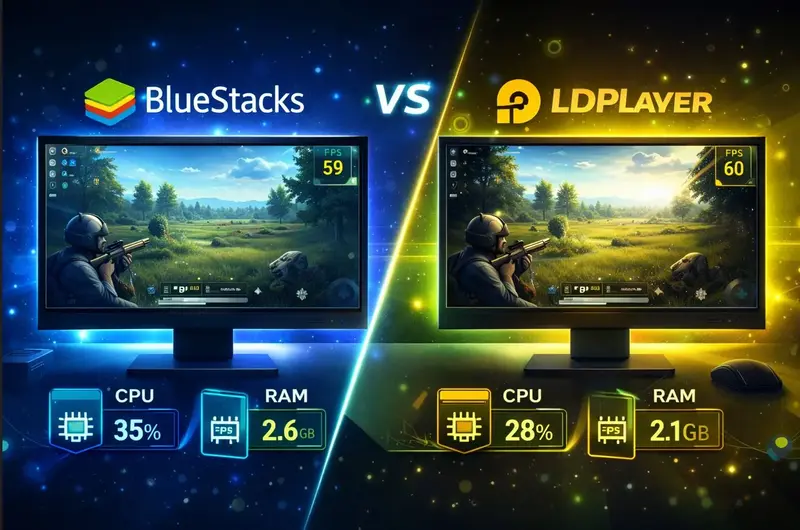
| Feature | BlueStacks | LDPlayer |
| RAM Usage | Moderate–High | Moderate |
| Multi-Instance | Yes | Yes |
| Android Engine | Android 9/11 | Android 9 |
| Setup Difficulty | Easy | Very Easy |
| Best For | High-performance systems | Mid-range systems |
Which Emulator Should You Choose Based on Your PC Specs?
- 4–6GB RAM → LDPlayer
- 8GB RAM or more → BlueStacks
- Multi-account testing → BlueStacks
- Lightweight use → LDPlayer
GameLoop is another option, though it is more game-focused and less flexible for APK imports.
System Requirements for Running HappyMod on PC
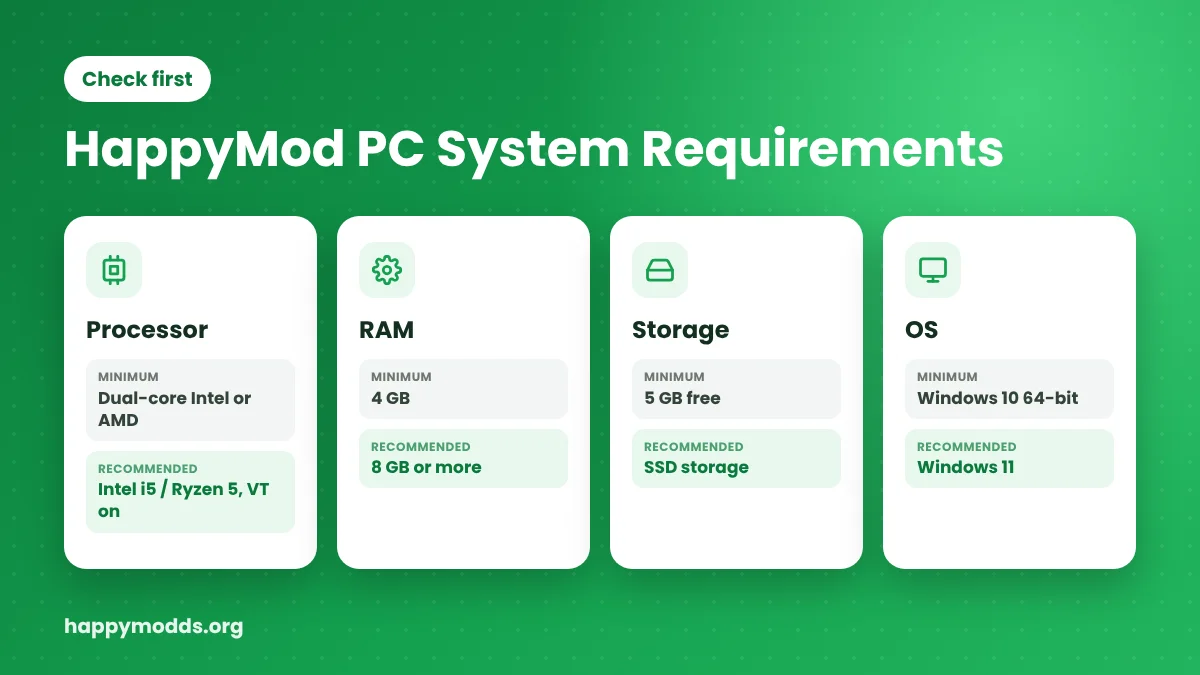
Minimum Requirements (Basic Functionality)
- Windows 10 64-bit
- Dual-core Intel or AMD CPU
- 4GB RAM
- 5GB storage
- Stable broadband connection
Recommended Specifications (Smooth Performance)
- Windows 11
- Intel i5 or Ryzen 5
- 8GB RAM or more
- SSD storage
- Virtualization enabled
SSD vs HDD Impact on Emulator Speed
SSD storage improves emulator startup, APK extraction, and in-app loading times. HDD works but may introduce longer boot delays. Multi-instance mode benefits greatly from SSD because several virtual sessions may load simultaneously.
Step-by-Step Installation Guide
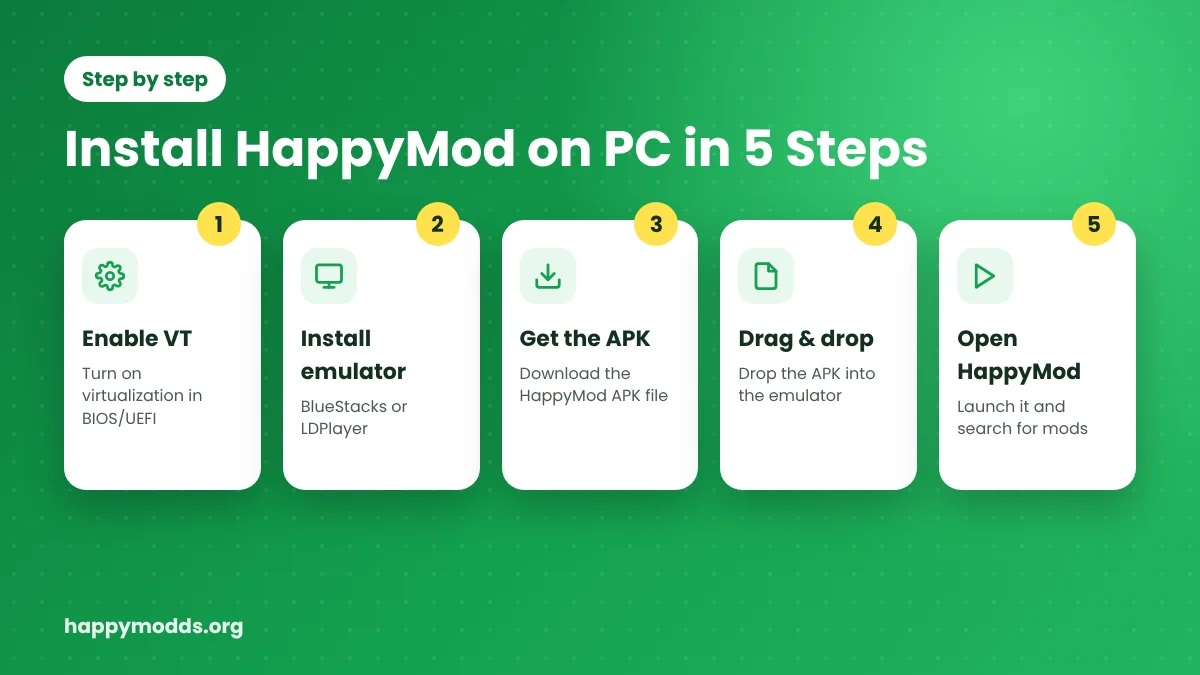
Download and Install BlueStacks or LDPlayer
- Visit BlueStacks.com or LDPlayer.net
- Download the installer
- Run the setup file
- Complete installation
If the installer stalls, check virtualization settings.
Configure Emulator Settings Before APK Installation
Open emulator settings:
- Assign 2–4 CPU cores
- Allocate 4GB RAM if available
- Select OpenGL or DirectX rendering
Restart the emulator after adjustments.
Download the Official HappyMod APK Safely
Use a secure browser and download the HappyMod APK from the official site. Avoid mirror hubs.
Save the file in your Downloads folder.
Install the APK Using Drag-and-Drop or Install APK Option
Drag-and-Drop:
Drag HappyMod.apk into the emulator window.
Install Button:
Click Install APK→ Choose file → Confirm.
The app icon appears on the emulator home screen.
Verify Successful Installation Inside the Emulator
Launch the app. If it opens without crashing, installation is complete. If it closes instantly, clear the cache inside the emulator settings and retry.
How to Optimize Emulator Performance
Allocating RAM and CPU Cores
Inside emulator settings, increase RAM allocation if performance drops. Do not allocate all available memory. Leave at least 2GB for Windows.
Adjusting Graphics Mode and FPS Settings
Switch between OpenGL and DirectX if visual issues appear. Lower FPS if CPU usage exceeds 80% in Task Manager.
Reducing Lag and Startup Delays
- Disable startup programs
- Close browser tabs
- Avoid running heavy downloads
Closing Background Applications for Better Stability
Streaming apps and rendering software consume memory. Freeing system resources improves emulator stability.
Common Installation Mistakes to Avoid

- Opening APK files directly in Windows
- Downloading from unknown websites
- Skipping virtualization setup
- Using outdated emulator builds
Minor configuration mistakes can prevent the app from launching properly.
Common Issues and Solutions
Emulator Not Opening or Freezing During Setup
Reinstall the emulator. Confirm virtualization is active.
APK Not Installing or App Not Installed Error
- Check storage space
- Re-download APK
- Update the Android emulator engine
Emulator Running Slowly or Using High CPU
- Increase RAM allocation
- Switch graphics mode
- Close background apps
App Crashing After Launch
Clear the app cache inside the emulator. Try another APK version. Some builds may conflict with the emulator’s Android version.
Is HappyMod on PC safe?
Emulator Isolation and System Safety
The emulator operates inside a sandbox environment. It separates Android files from Windows system directories.
Scanning APK Files Before Installation
Scan the APK with antivirus software before importing it.
Understanding Risks of Modded Applications
Modified apps may violate game policies. Online multiplayer titles may suspend accounts.
Avoiding Account Bans in Online Games
Use a test account when experimenting with mods. Avoid linking personal Google accounts.
Conclusion
Running HappyMod on PC is easy, but one should be aware of the risks and requirements. Choose emulators that are suitable for your system because many light and heavy emulators are available for different types of machines. Install your app inside a virtual Android environment to use it without any hesitation.
Check download sources and choose authentic ones. Monitor your system performance and scan files if you can.
Before Installing check the software details and read the important notes about its working method. After all these important tasks, install this gaming hub on your pc and enjoy Android apps on PC.